
Find it in an ad account page, Targets. Last updated 9 Oct 2026.
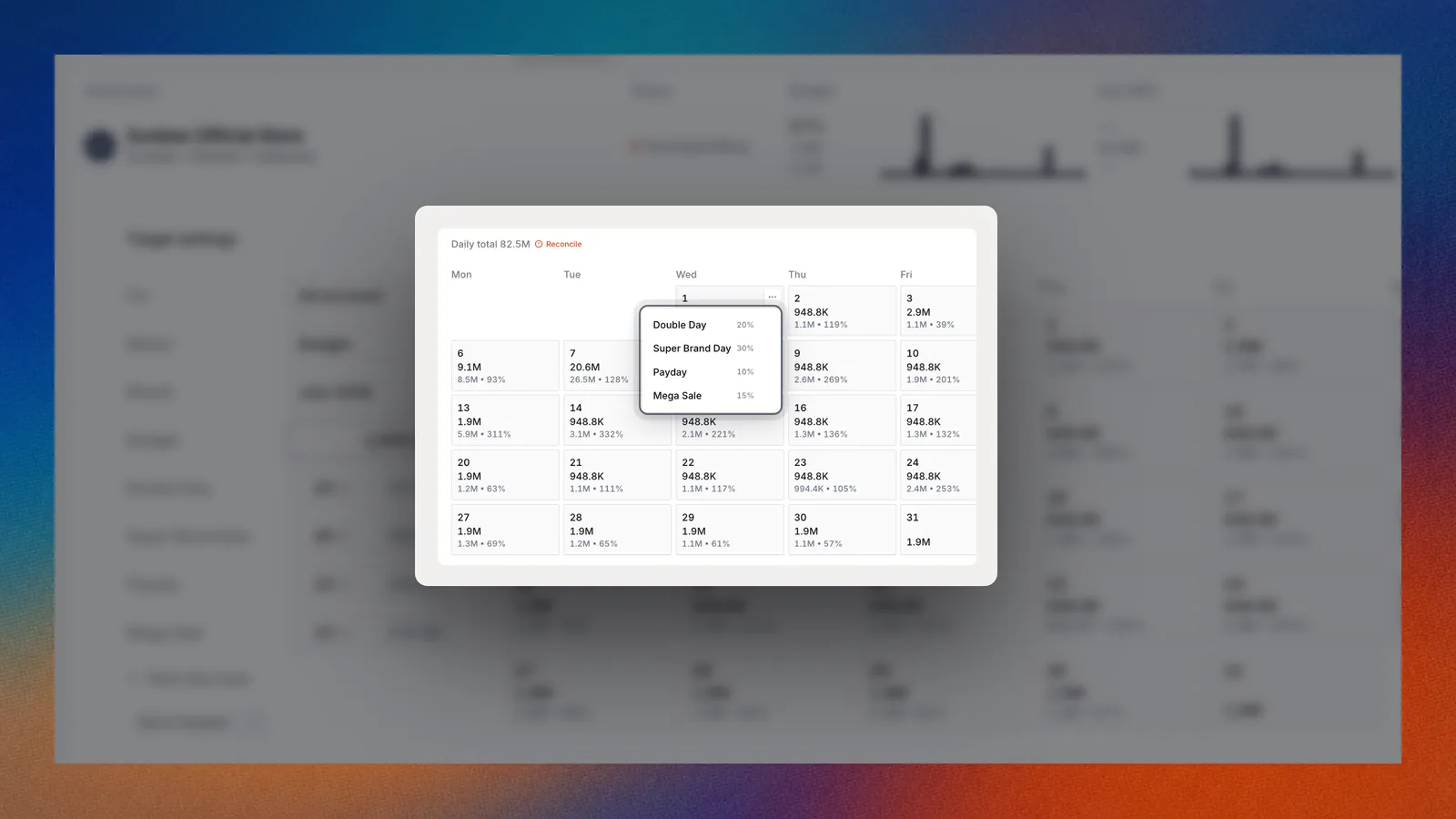
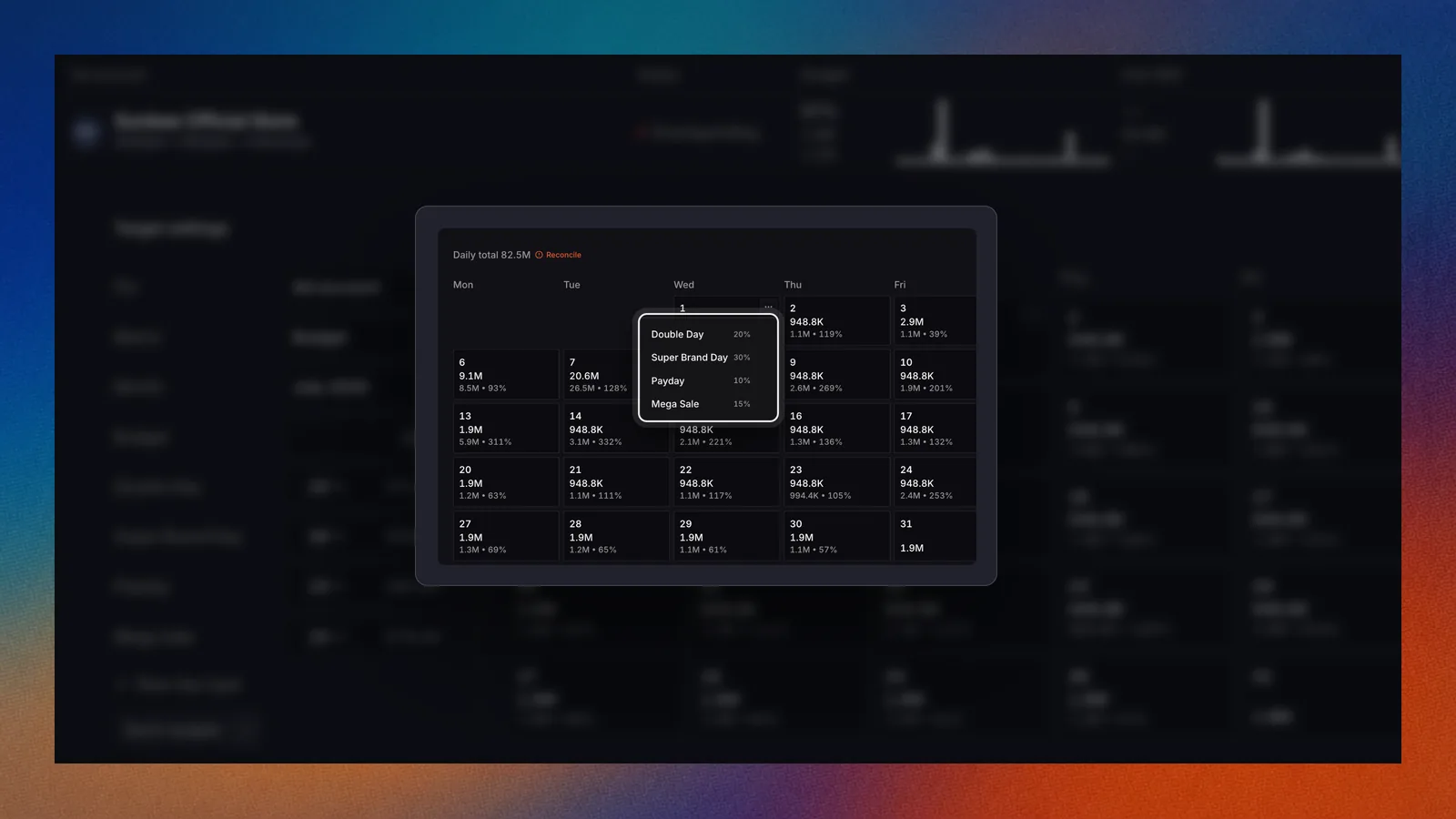
Day types give some days a bigger share of the month.
Overview
A month is not flat. Double days, paydays and weekends pull more spend and sales than an ordinary day. Shaping splits your month target across its days the way your month really runs, so pacing grades each day against a fair number.How it works
1
Set the month target first
Shaping divides the month total, so enter it under Month targets before you shape.
2
Pick a starting shape
Start from an even split, last month’s plan, last month’s actuals or a weekday curve.
3
Add day types
Tag days such as Double Day or Payday. Each day type takes a share of the month, split equally across its days.
4
Ordinary days take the rest
Days with no type are BAU days. They share whatever the day types leave.
Use it
Start from a shape
Open the Targets menu and select Start from, then pick one:- Even split: the same amount every day.
- Last month’s plan: the previous month’s plan, copied in.
- Last month’s actuals: days shaped like what really happened last month.
- Weekday curve: days shaped by your usual weekday pattern.
Copy a whole plan from another month
Open the Targets menu, select Copy plan from and pick a month. The full plan for this ad account comes across, money and shape.Shape days like another month
Open the Targets menu, select Shape days from and pick a month. Only the day pattern comes across. Your month target stays.Add a day type
- Under Day types, add a day type. Start from one of the defaults or name your own.
- Click the days to place it.
- Set its share of the month.
- Double Day: changes by month, since 11.11 is not 2.2.
- Super Brand Day: 30%.
- Mega Sale: 15%.
- Payday: 10%.
Edit several days at once
Select one or more days. In the selection bar, pick:- Label, to tag them with a day type.
- Fill down, to copy one value to the rest.
- Spread, to spread a value across them.
- Clear, to empty them.
Use one shape for many accounts
Open the Targets menu, select Apply shape and pick the ad accounts. They get this account’s day types and day curve. Each account keeps its own target. Open each one to review and publish.Make the days add up
When the days do not equal the month target, select Reconcile. Then select Publish.Reset a month
Reset to default clears the published target for the month. You confirm before it runs.Ask Botep
FAQ
Why can't I use the weekday curve?
Why can't I use the weekday curve?
Set the month target first. The weekday curve also applies only to Ads GMV, and is not available for a campaign target yet.
Can I change days that already passed?
Can I change days that already passed?
No. Days that have elapsed show actuals and are locked.
Related
Targets
Set the month target first.
Pacing against targets
See how each day tracks the plan.
Double day war room
Plan double days ahead.