Find it in the left menu, Campaigns. Also on every ad account page, Campaigns. Last updated 9 Oct 2026.
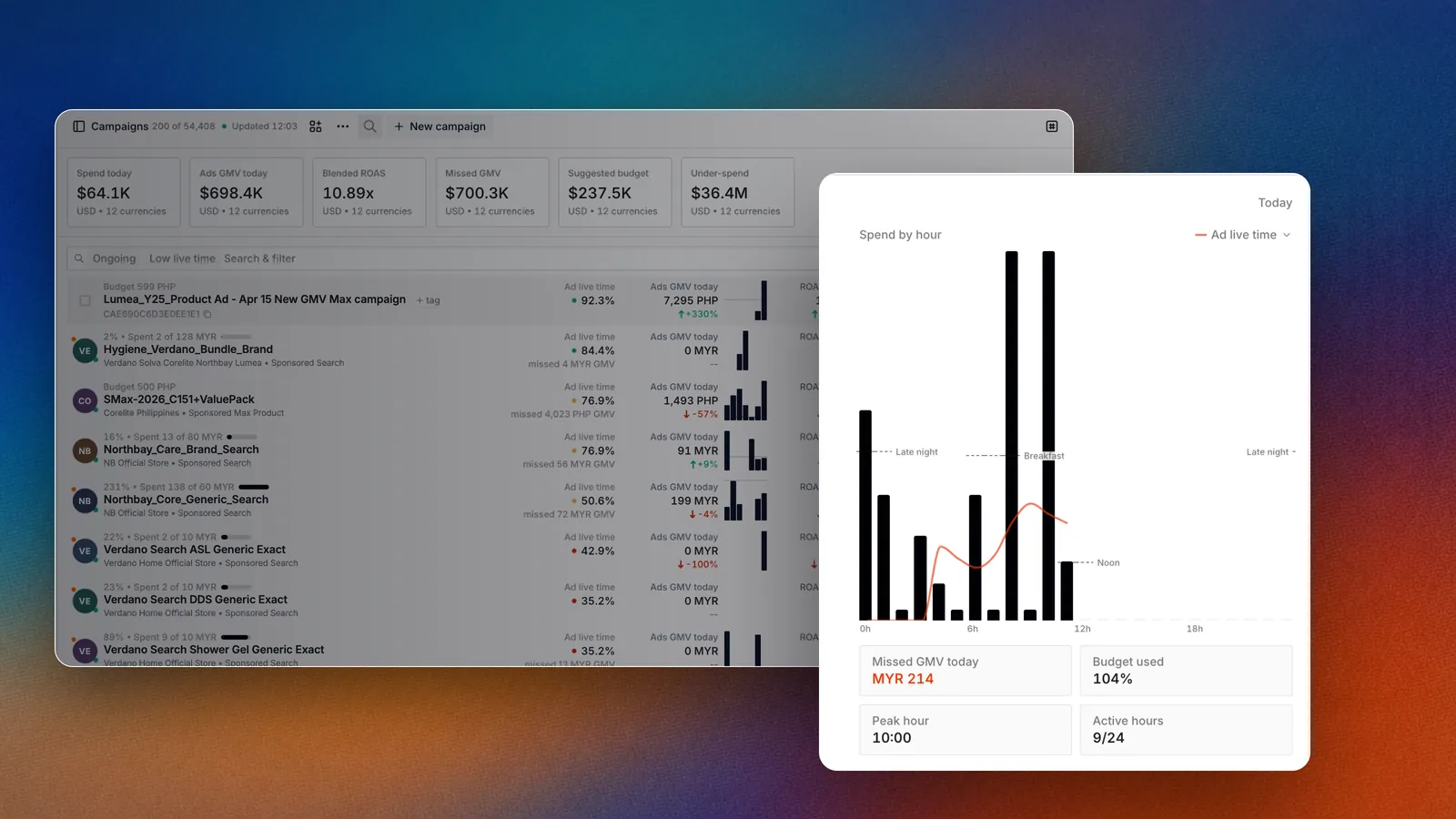
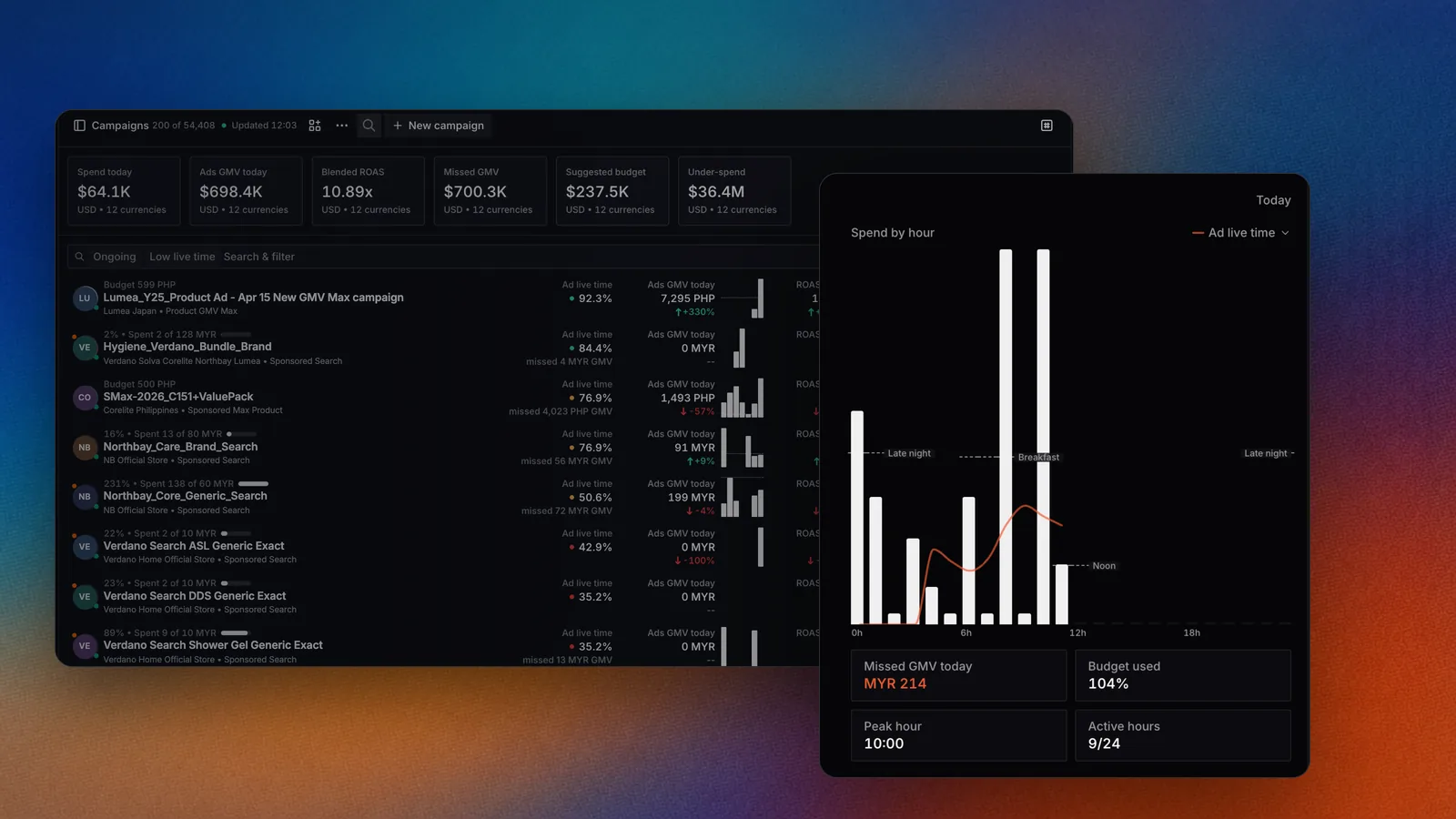
Filter Campaigns to the ones losing live time, then read their spend by hour.
Overview
Campaigns is where you operate your ads. It uses one model for every network, so a Shopee campaign and a TikTok Shop campaign read and work the same way. You see every campaign across your ad accounts, filter to the ones that need you, and change them in place. Available on paid plans. See pricing.How it works
1
Campaign
The top level, tied to one ad tool on one network, such as Product GMV Max. Budget, status and schedule live here.
2
Ad object
What the campaign advertises, usually a product. It can carry its own budget, status, bid or ROAS target, depending on the ad tool.
3
Ad placement
Where the ad runs, usually a keyword. Bids and placement status live here.
4
Ad creative
The image or video the shopper sees. See Ad creatives.
Use it
Find the campaigns that need you
Open the Health filter and pick one:- Suggested budget: the daily budget is below what the campaign needs.
- Low live time: the campaign went dark for part of the day.
- Under-spend: spend is running below the budget.
- Low ROAS: returns are low.
- Not lived: the campaign did not go live.
- Healthy: nothing to fix.
Filter by status
Open the Status filter and pick Ongoing, Paused, Draft, Ended or Suspended. You may also see Publishing, Syncing or Removed while a change is on its way to the network.Group and sort
Open Group by and pick Platform, Ad account, Ad tool, Market or Tag. Open Sort by for options such as Budget: high to low, ROAS: low to high or Ad live time: low to high. See Tables, views and filters.Read the day as it runs
Open the display menu and turn on Today by hour for a chart of today in each row, or Daily trend for the last 30 days. Turn on Schedule to show schedule columns.Create a campaign
Select New campaign, pick the ad account and ad tool, and fill the form. The form changes to the fields that ad tool needs. Network specific steps are in the Networks tab.Open a campaign
Select a campaign to open its detail. From there you can:- Change budget, status, bids and targets in place.
- Select Activity to see every change made to it. See Activity.
- Add an automation with New script, New schedule or New alert. See Automations.
Change many at once
Select rows and act on them together, or run Bulk action on a filtered set. See Bulk actions.Ask Botep
FAQ
Why did my change not stick?
Why did my change not stick?
The network can refuse a change, for example a budget below its minimum. Epsilo tells you when the network did not apply it. Check Activity for the result.
Can I set a target for one campaign?
Can I set a target for one campaign?
Yes. In Targets, switch the target scope to campaign. See Targets.
Related
Connect your first ad account
Campaigns appear once an ad account is connected.
Bulk actions
Change many campaigns at once.
Daily check
Work out why a campaign stopped delivering.