
Find it in Automations, Scripts tab, New script. Last updated 9 Oct 2026.
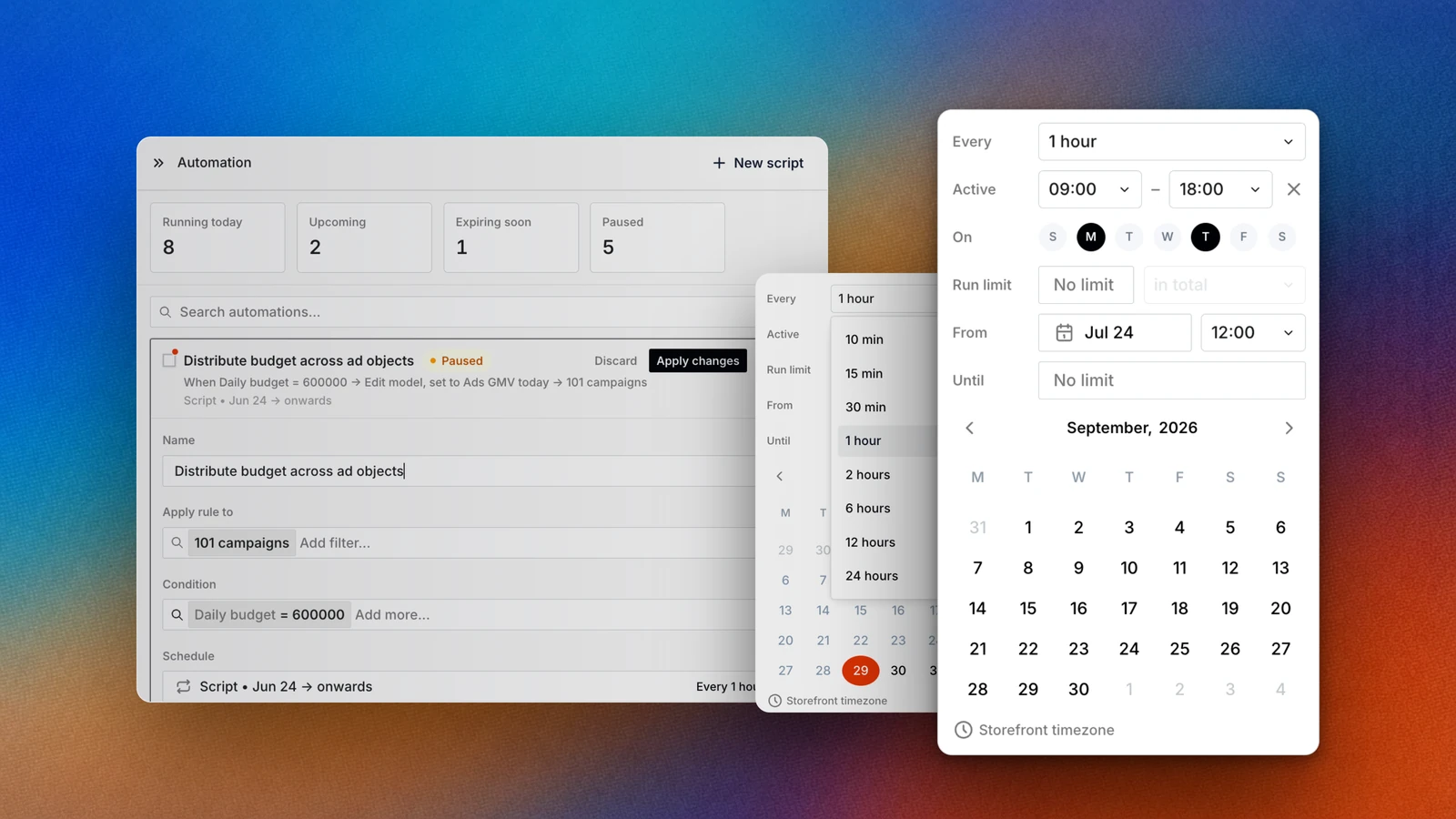
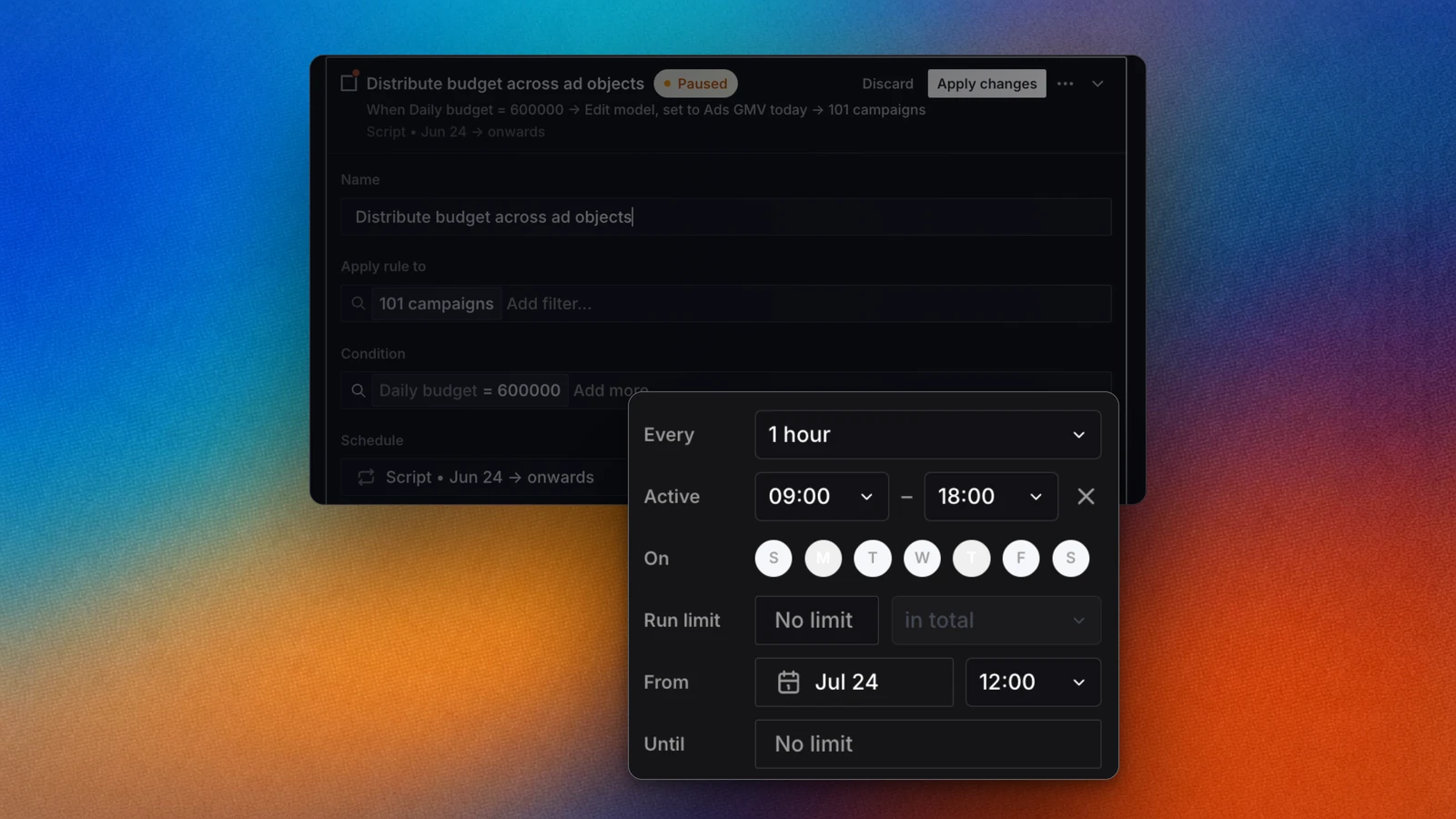
A script checks its condition on the interval you pick, inside an active window.
Overview
A script is an automation with a condition and an action. Epsilo checks the condition on the ad units you picked, and acts on each one where it is true. Use it for the checks you repeat every day: pause what wastes spend, give winners more budget, hold a bid ceiling.How it works
1
Scope
Apply rule to sets the ad units: campaigns, ad objects, ad placements, ad creatives or ad accounts. Narrow it with filters. The filters you have on the Automations page carry into a new script.
2
Condition
Condition holds one or more metric rules, for example ROAS today under a value.
3
Schedule
Schedule sets how often the condition is checked and when the script is live.
4
Action
Action is the change Epsilo makes on each ad unit that matches, such as a new daily budget, bid or status.
Use it
Create a script
- Open Automations and select New script.
- Give it a Name.
- In Apply rule to, pick the level and the ad units.
- Add a Condition and an Action.
- Set the Schedule, then select Publish.
Set how often it checks
In Schedule, Every sets the check interval: 10 min, 15 min, 30 min, 1 hour, 2 hours, 6 hours, 12 hours or 24 hours. New scripts check every hour.- Active limits checks to a time window, for example 09:00 to 18:00.
- On limits checks to some days of the week.
- Start and the end date bound the period. Leave the end at No limit to keep it running.
- Times follow the ad account’s time zone.
Cap how often it acts
Run limit stops a script from acting again and again while the condition stays true. Set a number per hour, per day, per month or in total.Get told about results
In Notification, select Notify me and choose when: If it runs into a problem, Every time it makes a change or When it runs but does nothing. Delivery goes to Slack or Email.Edit a live script
Change any field, then select Apply changes. Epsilo shows Apply these changes? with what will change before it saves.More actions
The script’s menu has Save as draft, Pause, Resume, Save as template, Duplicate and Delete.FAQ
What if two scripts change the same ad unit?
What if two scripts change the same ad unit?
Epsilo warns you with Review script conflicts before you save. If you continue, both run, and the order between them is not guaranteed. Use conditions or time windows that do not overlap.
Where do I see what a script did?
Where do I see what a script did?
Open the script and read Log, or use the Log tab on the Automations page for every run in the workspace.
Related
Automations
The page where every automation lives.
Schedules
Make a change at a set time, with no condition.
Automate your optimization
Which scripts to set up first.